Introduction
Building on Slack Apps functionality, this post explores how to implement interactivity and modals. These features enable users to submit information through your app, making them essential for creating functional Slack integrations.
Interactivity Explained
Interactivity originates from three main entry points:
- Slash Commands
- Shortcuts
- Slack Blocks (buttons, input fields, etc.)
Each interaction generates a payload containing a crucial element: the trigger ID, which is needed for modal operations later.
A key challenge: only one webhook URL can be configured, meaning all user interactions route to the same endpoint. This requires implementing logic to differentiate between actions. The solution involves creating Block IDs and Action IDs to filter data and ensure workflows execute only when appropriate.
For example, labeling a timepicker block with the block ID “timepicker” and action ID “time-picked-action” standardizes data handling, ensuring consistent processing each time users interact with that element.
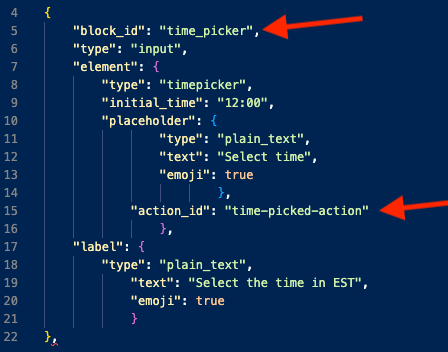
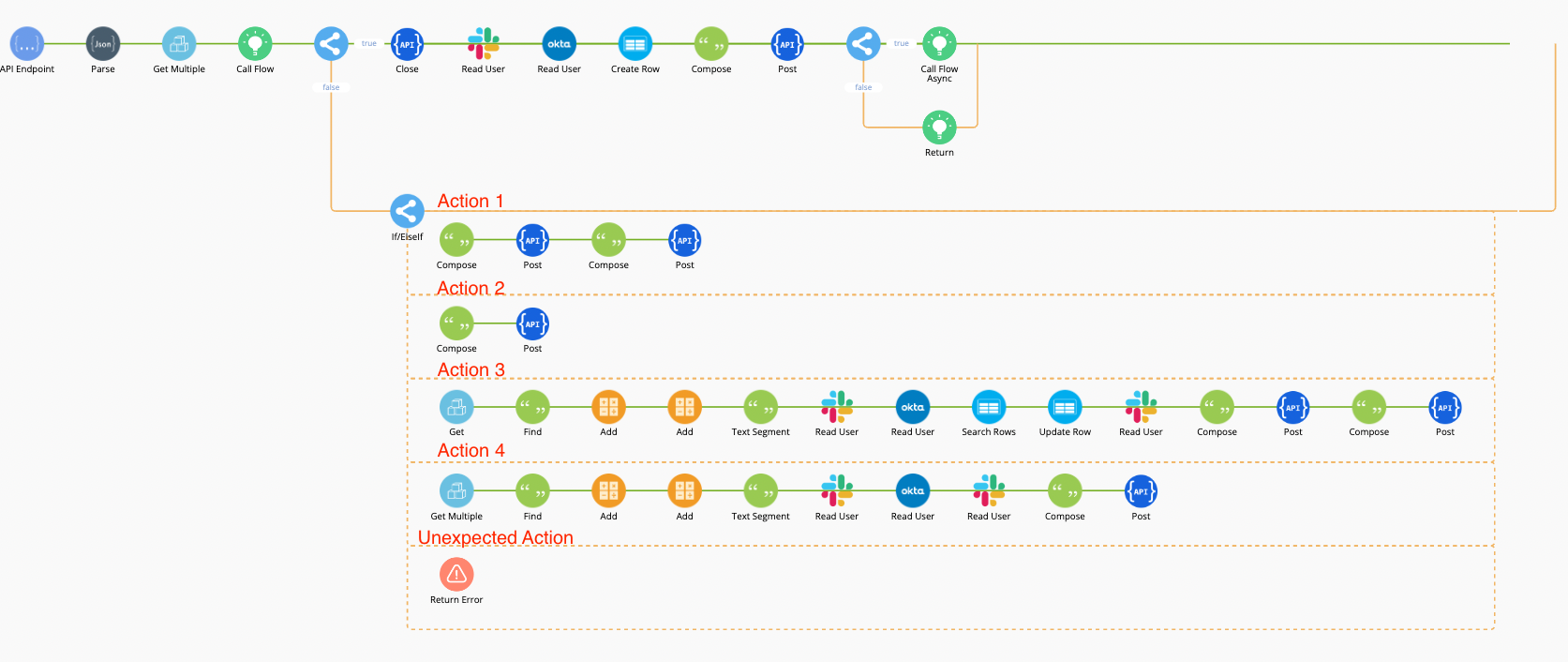
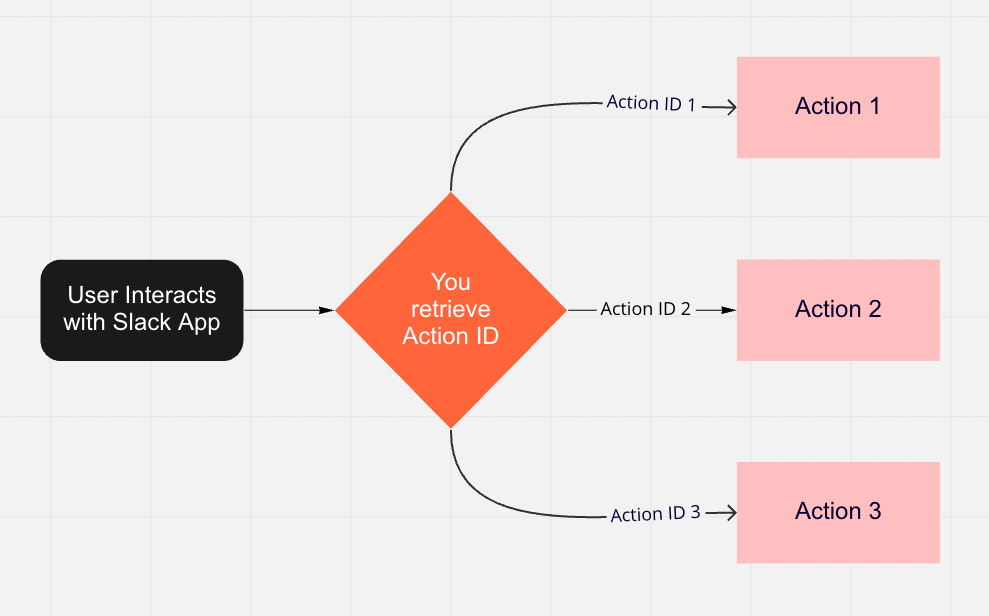 An example of the workflow logic based on Action ID
Slack App Setup
- Navigate to https://api.slack.com/apps/ and create a new app
- Name your app and select your development workspace
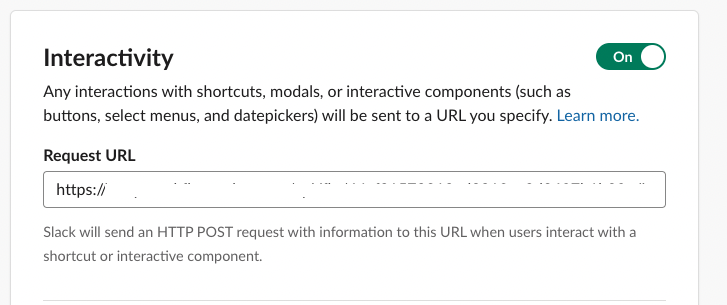
- Go to the Interactivity & Shortcuts page and toggle Interactivity on
- Proceed to either Okta Workflows setup or alternative endpoint configuration
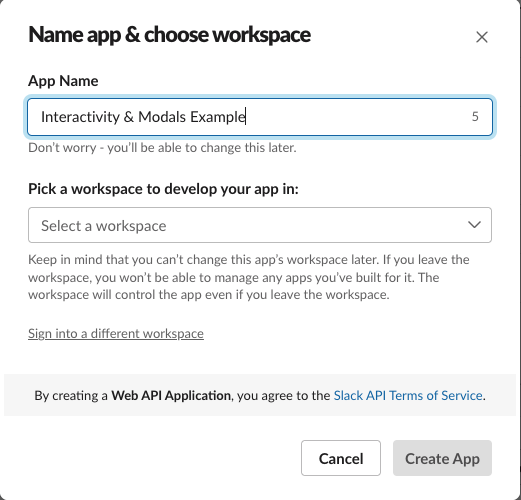
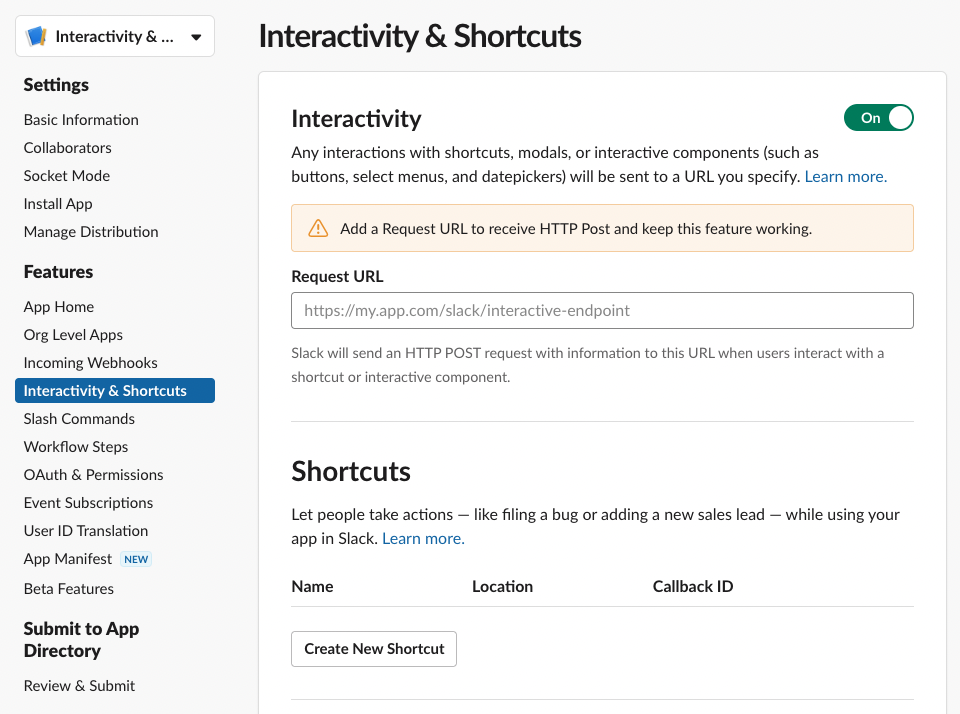 Navigate to the Interactivity & Shortcuts page and toggle Interactivity on.
Okta Workflows Setup
Create a new workflow using an “API Endpoint” trigger with “Expose as public service” enabled. Use these cards:
- JSON Parse — processes the body payload string
- Object Get Multiple — extracts data from the parsed JSON
- If/ElseIf — contains primary logic for determining next steps
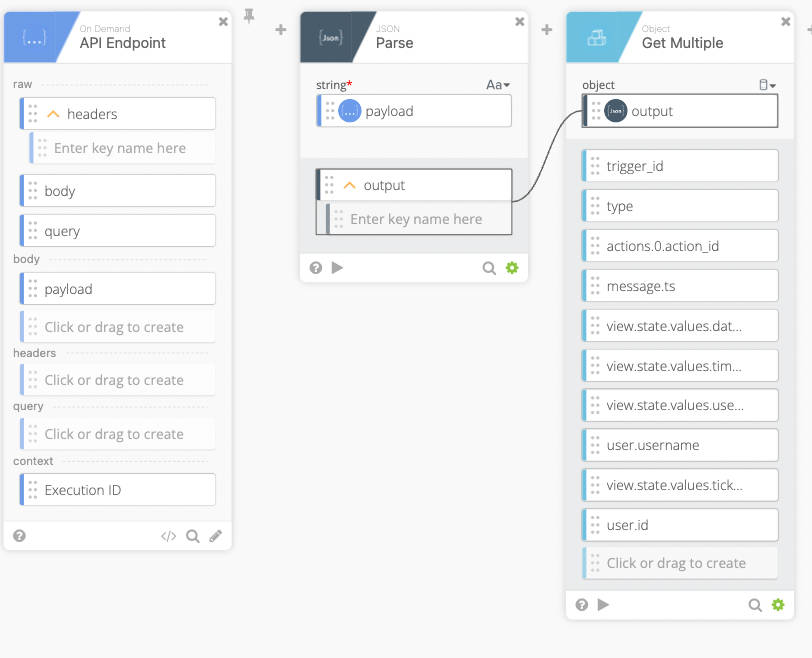
Collect data including trigger ID, action ID, message timestamp, and username. Use conditional logic for each possible action, with a catch-all error handler for unexpected interactions.
After saving and enabling the flow, copy the Invoke URL from the endpoint configuration.
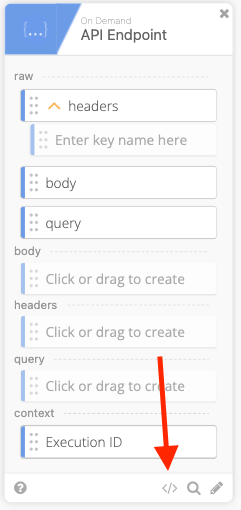 Save the flow and enable it. Click the endpoint configuration button and copy the Invoke URL.
Slack App Setup (Continued)
Paste the API endpoint URL into the “Request URL” field on the Interactivity page. This completes the foundational setup for user interactions and data collection.
Slash Commands
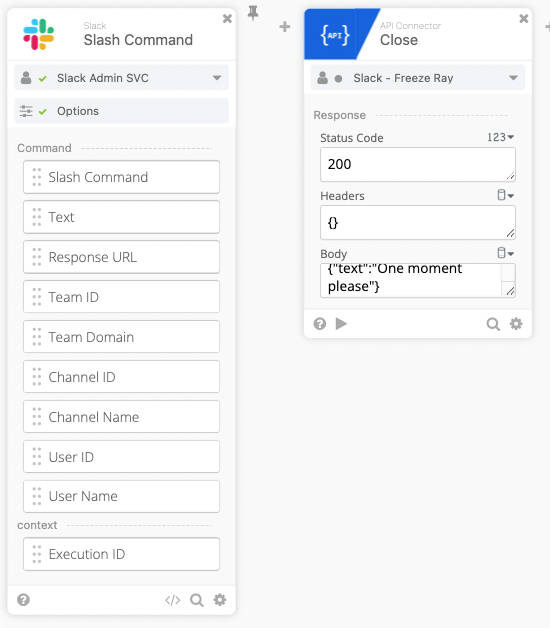
Slack requires responses within 3 seconds; otherwise users receive error messages. Work around this by immediately returning a 200 status code with acknowledgment text, then continuing workflow processing afterward.
Modals
Modals are opened via the views.open API call, which requires a trigger ID. Slack uses this requirement to verify user intent, preventing unsolicited modal spam.
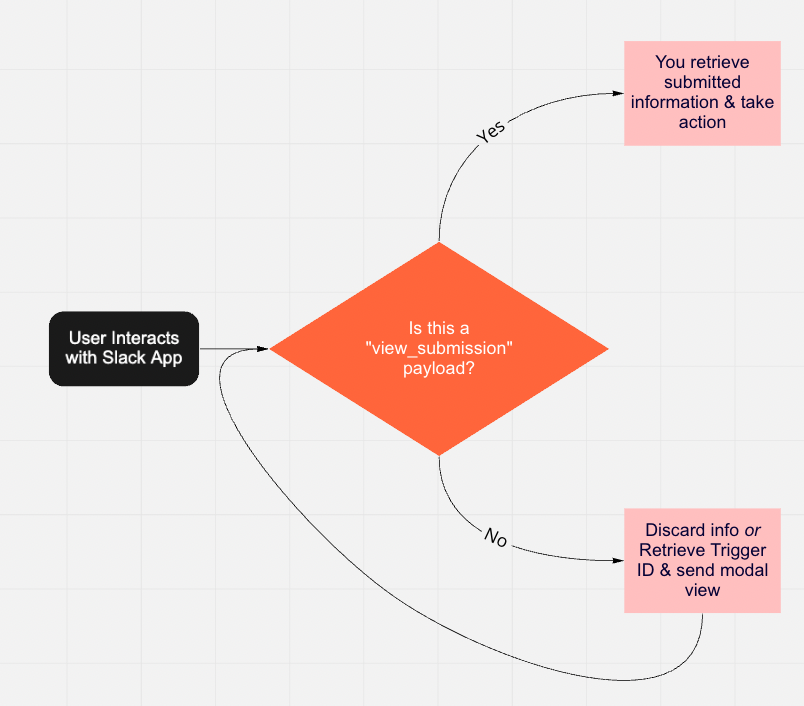
When modals contain input fields, users see a Submit button. Upon submission, Slack sends a view_submission event (instead of block_actions), requiring a 200 status response within 3 seconds to either load the next view or close the modal.
The workflow logic becomes complex because all interactivity routes to a single endpoint. Check if incoming interactions are view_submission payloads. If yes, extract submitted data and continue. If no, either discard or retrieve the trigger ID and send a modal.
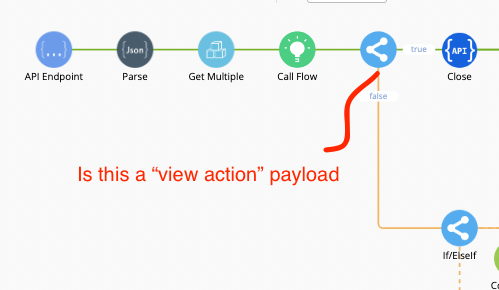
Note on Okta Workflows: I’ve seen weird behavior when responding to view_submission payloads within If/ElseIf structures. Creating separate logic checks for submission payloads prevents modal closure failures.
Modal JSON Template
{
  "trigger_id": "{Insert Trigger ID}",
  "view": {
    "type": "modal",
    "title": {
      "type": "plain_text",
      "text": "Example Modal",
      "emoji": true
    },
    "close": {
      "type": "plain_text",
      "text": "Cancel",
      "emoji": true
    },
    "submit": {
      "type": "plain_text",
      "text": "Submit",
      "emoji": true
    },
    "blocks": [ ]
  }
}